Products
Services
Solutions
Regions
Industries Insights Case studies About Contact
Akora/Products/Wiki for SharePoint
Wiki for SharePoint

A markdown wiki, inside SharePoint.

Write, link and review pages on your own SharePoint site. Each page is a SharePoint list item, and the wiki runs in the browser with each person's own permissions.

WORKS WITH
SharePoint Online, in Chrome and Edge on desktop
WHERE PAGES LIVE
Items in a SharePoint list on your site
BACKEND
None. It runs in the browser.
Contact us about the wiki →
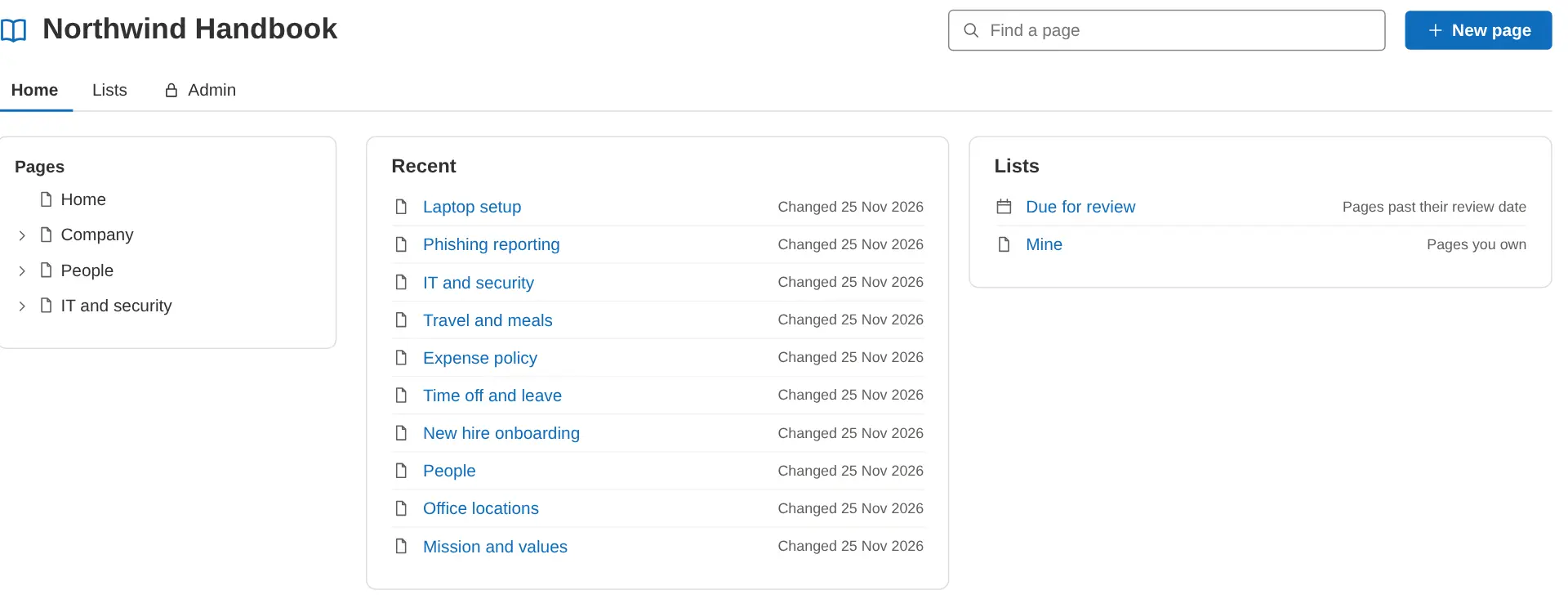
Wiki home of a SharePoint wiki: a page tree, recently changed pages, and lists of pages due for review and pages the signed-in person owns
The wiki home: the page tree, recently changed pages and the review lists.

A wiki for the pages your team writes and keeps up to date

Wiki for SharePoint suits how-to guides, runbooks, meeting notes and decision records. Pages sit in a tree, link to each other, and carry review dates.

The wiki is a SharePoint list on your own site. It runs in the browser with the permissions each person already has in SharePoint.

Pages in a tree

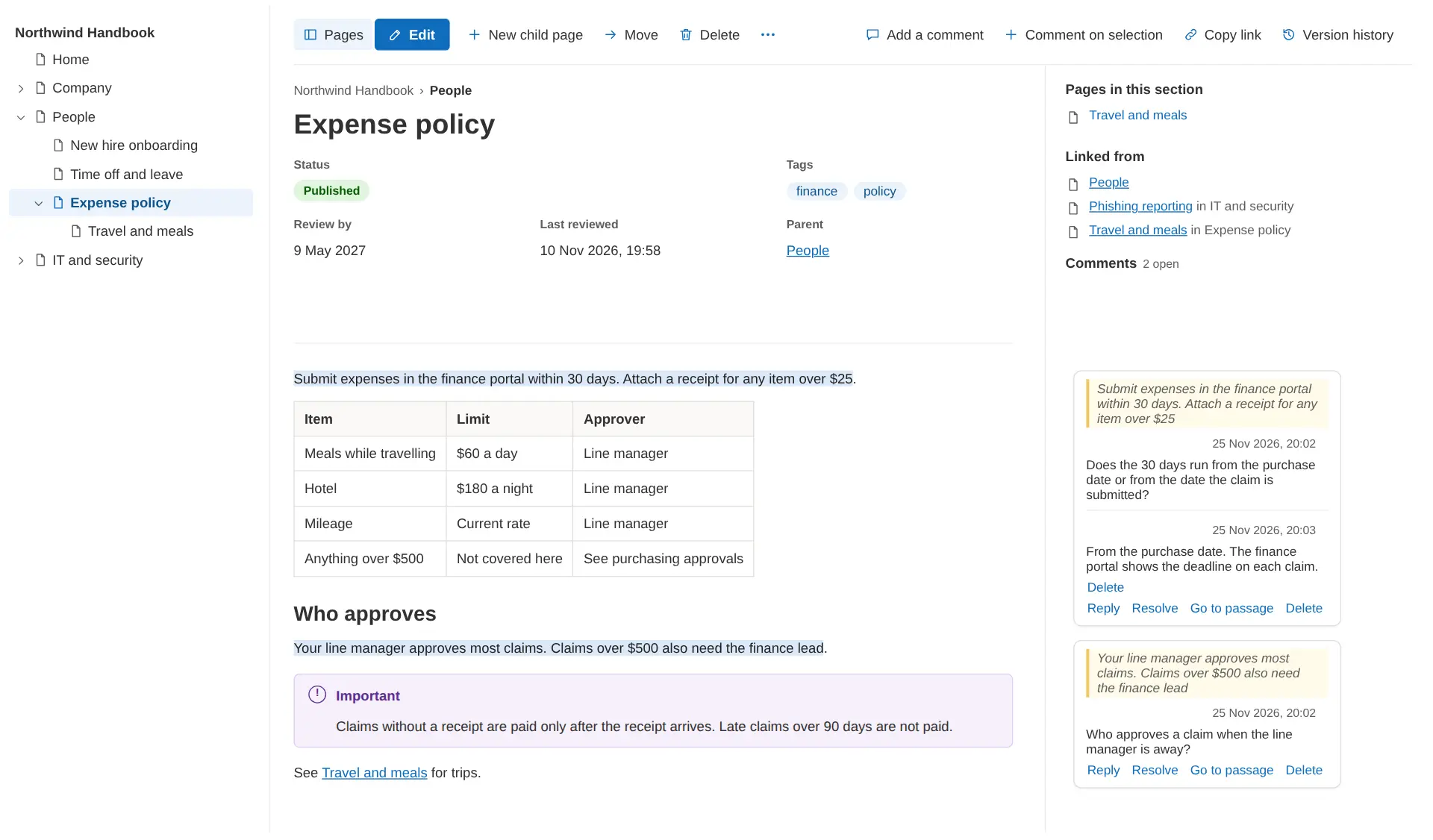
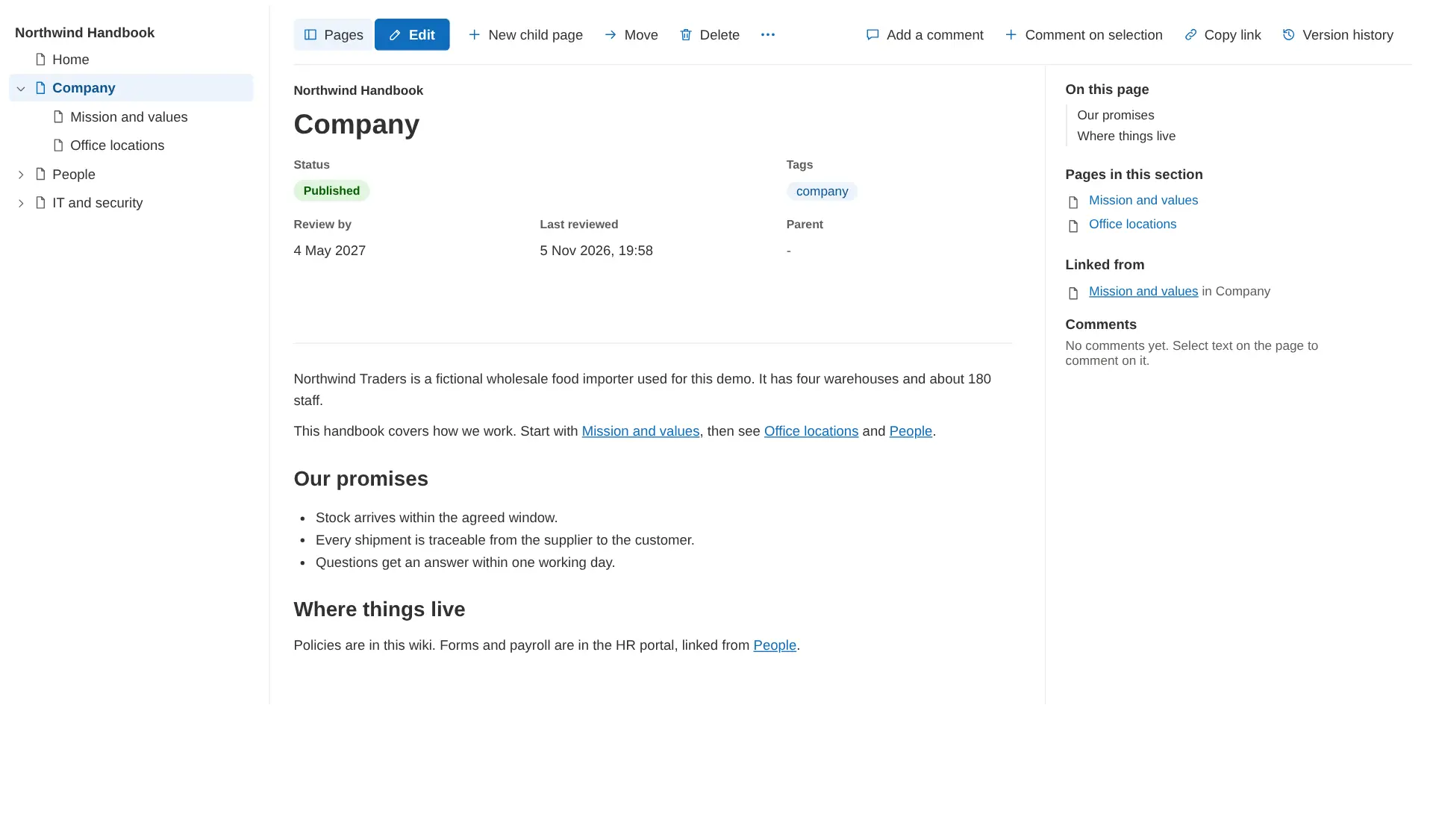
Pages nest up to 10 levels deep, under any number of top-level pages. The page tree loads as you open it. Siblings can be reordered by drag or from the keyboard, and the order is kept.

You can move a page under a new parent at any time, and its links keep working. When you delete a page, you choose whether its child pages move up a level or the whole branch is deleted. Deleted pages go to the SharePoint recycle bin.

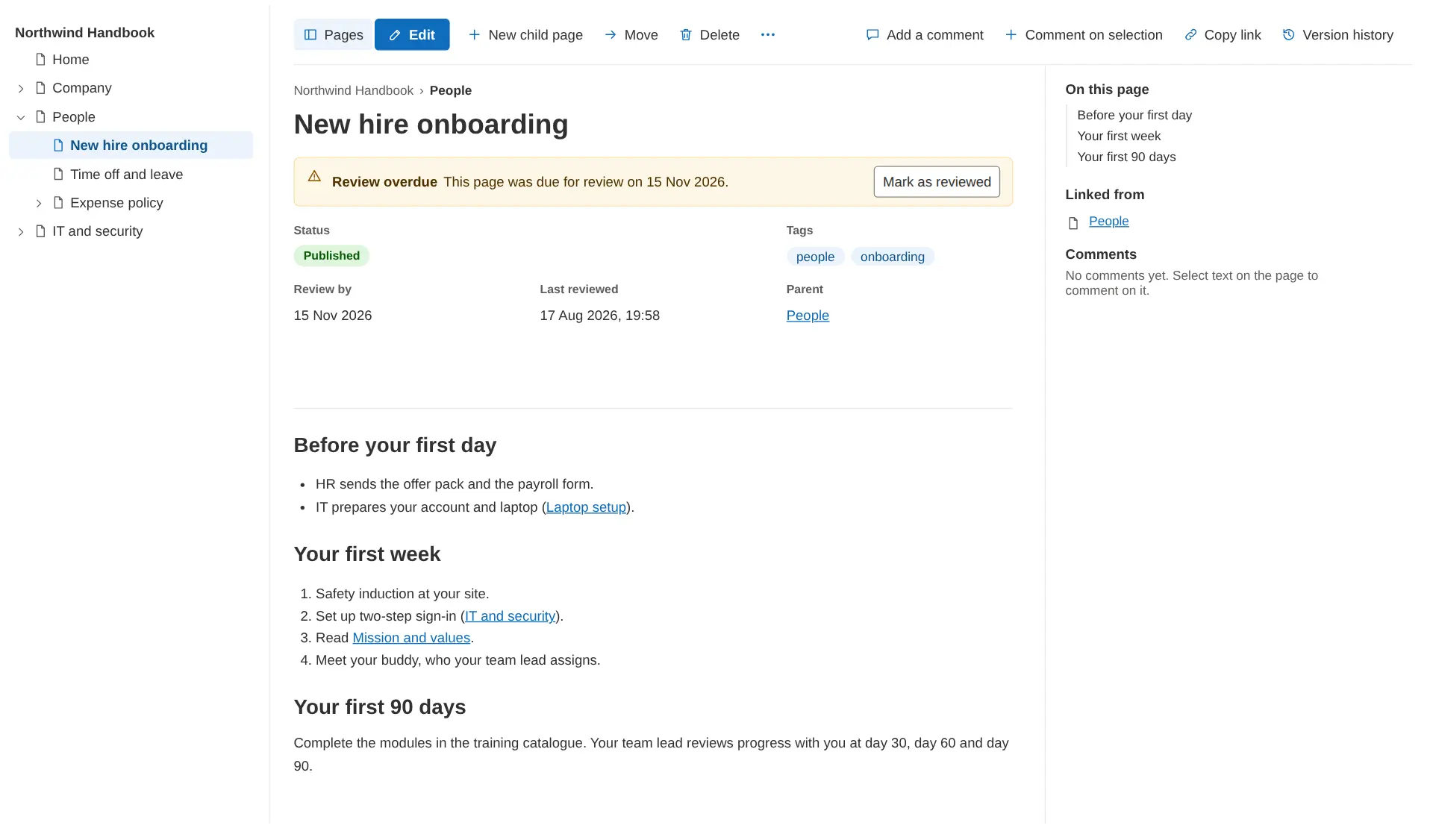
A wiki page in view mode: the page tree on the left, the properties and body in the middle, and On this page, the pages in this section and the linked-from list on the right.

Writing in markdown

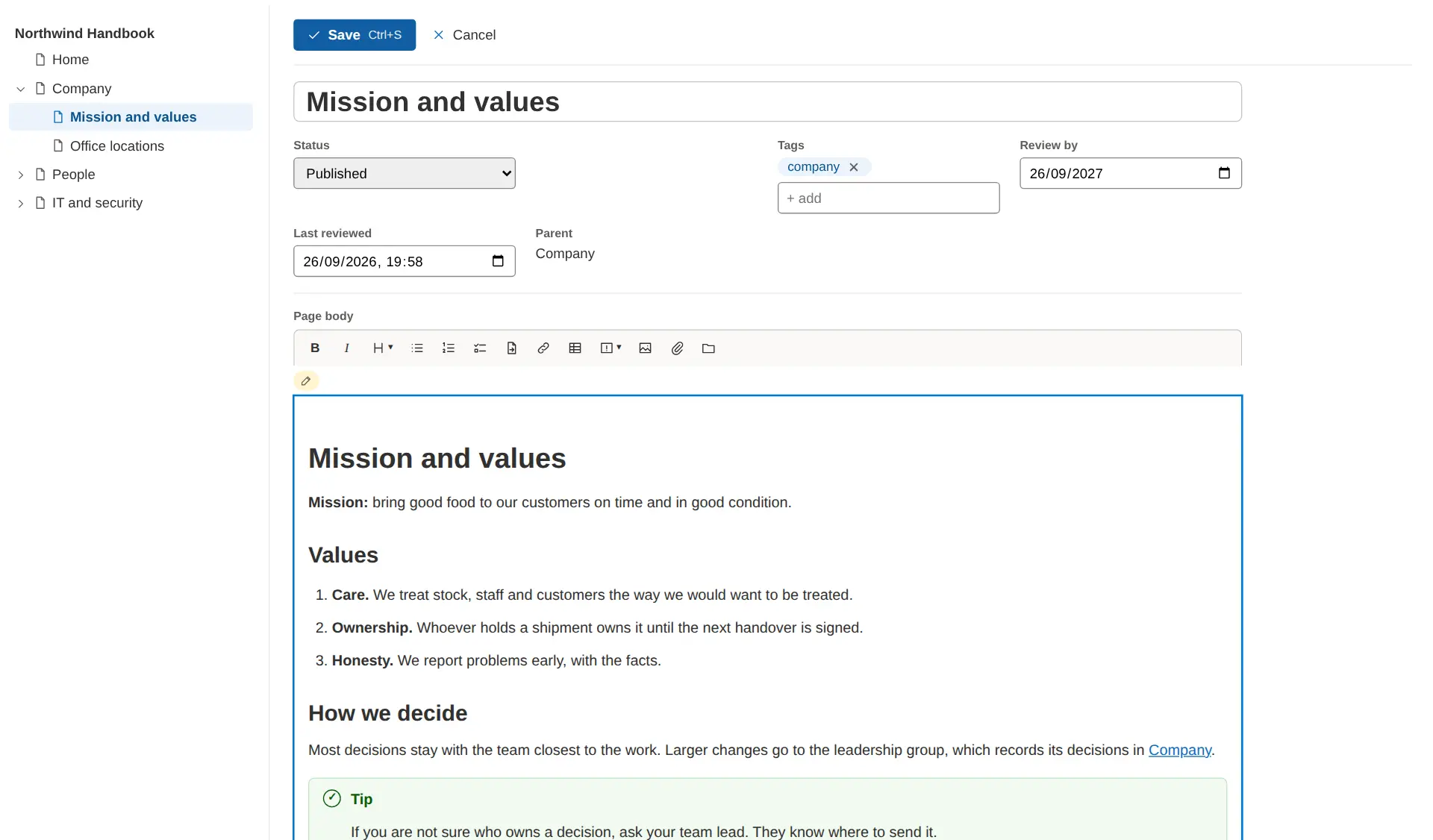
The editor shows markdown as you type. The markdown syntax appears only where the cursor is.

You can also insert blocks without knowing the syntax, from the formatting toolbar or the / command menu.

  • Headings, lists, checklists, code and tables. Tables can be changed by keyboard.
  • Callouts in five kinds: Note, Tip, Important, Warning and Caution.
  • Images up to 10 MB, pasted, dropped or picked, and embedded in the page.
  • Files up to 250 MB, linked with a file-type indicator. Office files and PDFs open in the browser.
  • A table of contents built from the headings.

Links that keep working

Type [[ to search for a page by title and link to it. Each link is stored with a hidden page ID, so it keeps working after the page is renamed or moved.

A link to a page that doesn't exist yet is shown as a red link. Clicking it creates the page as a child of the current page.

Each page lists the pages that link to it, trimmed to what the viewer is allowed to see. You can also link to a file or a list item on the site.

Properties from your SharePoint columns

Every page has properties, and they are the columns of the wiki's list. Every column appears automatically, including columns an admin adds later, with no code change.

The supported column types are text, choice, multi-choice tags, people (with photos), date, number, yes/no, link and lookup. The Parent column links each page to its parent.

Review and ownership

A page can have a status, an owner, a review date and a last-reviewed date. Marking a page as reviewed sets the last-reviewed date to today and moves the review date on by the review cadence.

The wiki admin sets the cadence in days. It defaults to 180. Drafts and overdue pages show a banner, and the wiki home lists the pages due for review and the pages you own.

A page past its review date. The banner says Review overdue and offers Mark as reviewed. Below it are the status, review date, last reviewed date, tags and parent.

Comments on a passage

Editors can select text and comment on it. The comment sits beside its passage, and the passage is highlighted.

Threads support replies, @mentions (which email the person), and resolve and reopen. You can filter the threads to all, open or resolved.

A comment follows its passage when the text is reflowed, reformatted or moved. If the passage is deleted, the comment stays on the page with the original quote. Readers can read comments but can't add them.

Two comment threads on passages of a page. Each shows the quoted passage, the comment text, and the reply, Resolve and Delete actions.

Editing without overwriting each other

Pressing Edit claims the page. Anyone else who opens it sees who is editing and since when, and can take over the page or view it only. If your editing is taken over, you keep your draft and can copy it, but you can no longer save.

The claim expires after 30 minutes, with a warning at 25 minutes that offers to keep editing. If someone saves after you opened the page, your save is refused and your draft is kept. You can then copy your changes or open the saved version.

You are warned before you leave a page with unsaved changes. Ctrl+S saves the body and the properties together.

The page editor: title, status, tags and review date above a live-preview markdown editor, with a formatting toolbar and Save and Cancel.

Templates

The product includes three starter templates: how-to or runbook, meeting notes, and decision record. Editors can save a page as a template, and admins manage the list.

A new page can start from a template. It copies the template's body and properties, and resets the status, owner and review dates. Templates carry the admin's custom columns.

Search and export

The wiki home has a search by title. SharePoint search also indexes the text of each page. Results from SharePoint search open the page with the search terms highlighted.

Any page can be exported as markdown. The export can include the page properties as YAML front matter, and wikilinks are exported as [[Title]].

Setting up and running the wiki

A site owner creates a wiki with a setup wizard. It shows the status of each step and can be run again after a failure. It creates the wiki's list, its supporting lists, the wiki home page, and a starter Home page.

Wiki admins get an admin area on the wiki home. It rebuilds the link index, with progress, and it can be resumed. It also manages templates, sets the review cadence, and upgrades the wiki, showing what will change first.

A wiki can join a hub on the tenant. Joined wikis link to each other's pages, show backlinks across wikis, and appear as roots in the hub's home tree. Hub admins create the hub and can prune wikis that can no longer be reached.

A page can't be moved to another wiki, but it can be copied. The copy keeps the body and properties. Comments and history don't come with it.
Keyboard and accessibility

Everything can be used from the keyboard, and there is a documented keyboard map. It includes Ctrl+S to save, Ctrl+Enter to post a comment, Alt+Shift+Up and Down to reorder pages, and Escape to close a dialog.

Automated accessibility checks (axe) report zero violations on every screen. Status is shown with text, not colour alone.

Where it runs

  • SharePoint Online. There is no backend to install or run. The wiki runs in the browser, as the signed-in person.
  • SharePoint enforces the permissions. The wiki shows each person only the actions their permissions allow.
  • Chrome and Edge on desktop are verified. Below 1,024 px wide, the wiki uses a sheet layout.
  • The SharePoint mobile app, Microsoft Teams and Copilot are not yet verified.
  • Guest users are out of scope.

Frequently asked questions

Where are the pages stored?
Each page is an item in a SharePoint list on your own site. The wiki is that list.
Does it need a server or a database?
No. There is no backend. The wiki runs in the browser, as the signed-in person, with that person's own SharePoint permissions.
Who can comment?
Editors can comment on pages. Readers can read the comments, but they can't add them.
Can a page be moved to another wiki?
Not directly. You can copy it. The copy keeps the body and properties, but comments and history don't come with it.
All products →

Wiki for SharePoint

Does a wiki in SharePoint fit your team? Ask us.

Tell us how your team writes and shares its pages, and we'll reply within one business day.