Features
Everything Timesheet does, from logging a week to exporting it for payroll.
Logging time
A whole week on one screen, with the projects each person works on.
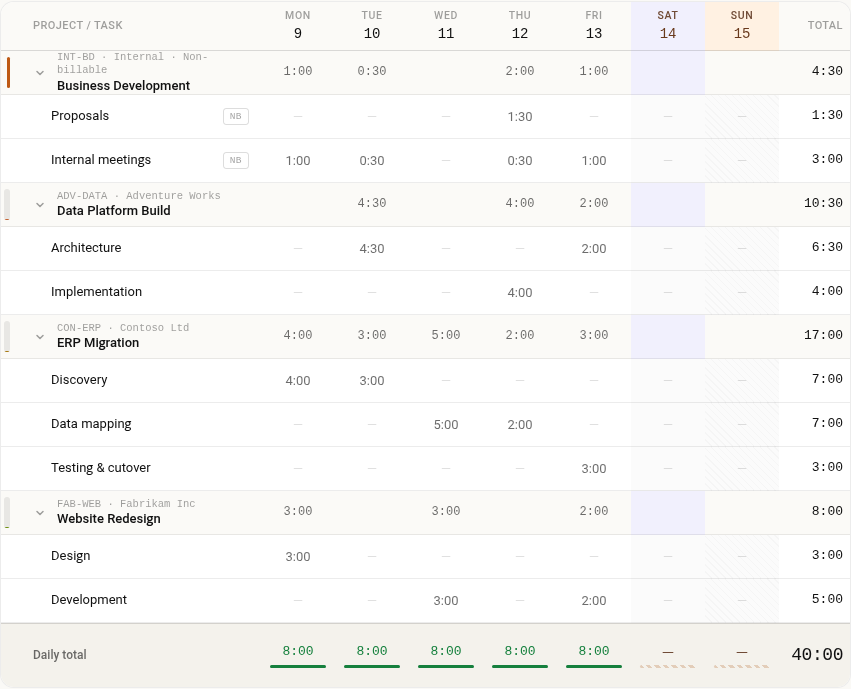
Weekly grid
See the whole week at once, with a row for each task you work on and running totals for every day.
Type hours your way
Enter 1.5, 1:30 or 90m. Timesheet reads all three.
Copy last week
Start the week from last week's entries, then change what's different.
Notes and billable flags
Add a note to any entry and mark it billable or not. Tasks set the default.
Activities
Break a task into activities, such as meetings or travel, and optionally require people to pick one.
Time off
Log leave with the PTO button. It goes to a time-off project that you choose.
Quick add on your phone
Log a single entry from your phone when you're away from your desk.
Enter time for someone else
With an admin's permission, an assistant can fill in a week on someone's behalf. Each entry records who typed it.
Clear reasons for locked days
Days before a project starts, or holidays where time isn't allowed, are locked in the grid with the reason shown.
Keyboard shortcuts
Move around the grid and between tabs from the keyboard. The Help button lists the shortcuts.
Submitting and approving
Weeks go to the right person without a separate org chart to maintain.
Submit with a summary
Check the week's totals before sending it. Submitted too soon? Recall it until it's reviewed.
Managers from Microsoft 365
Each week goes to the person's manager as set in Microsoft Entra ID.
Project lead approvals
Let a project's lead approve time logged to that project.
Approve or send back
Approvers see the hours and notes for each week, then approve it or send it back with a reason. The person fixes it and resubmits.
Admin queue
Admins see every week waiting for approval and can decide any of them.
Self-approval is your call
By default nobody approves their own week. Turn on self-approval for admins if your team needs it; those weeks are marked self-approved.
Email notifications
People hear about a week when it needs them.
Three moments
Approvers get an email when a week is submitted. The person gets one when it's approved or sent back.
Sent by a colleague
Emails go from the mailbox of the person who acted, so replies reach a real person and the email sits in their Sent Items.
Your own wording
Use the built-in emails or write your own templates with placeholders such as the week, total hours and the approver's comment. Preview before you switch one on.
A record of every email
Admins can see each notification and whether Microsoft 365 accepted it. After every submit or decision, the app says who was emailed.
Reports and export
Answer where the time went without building a spreadsheet first.
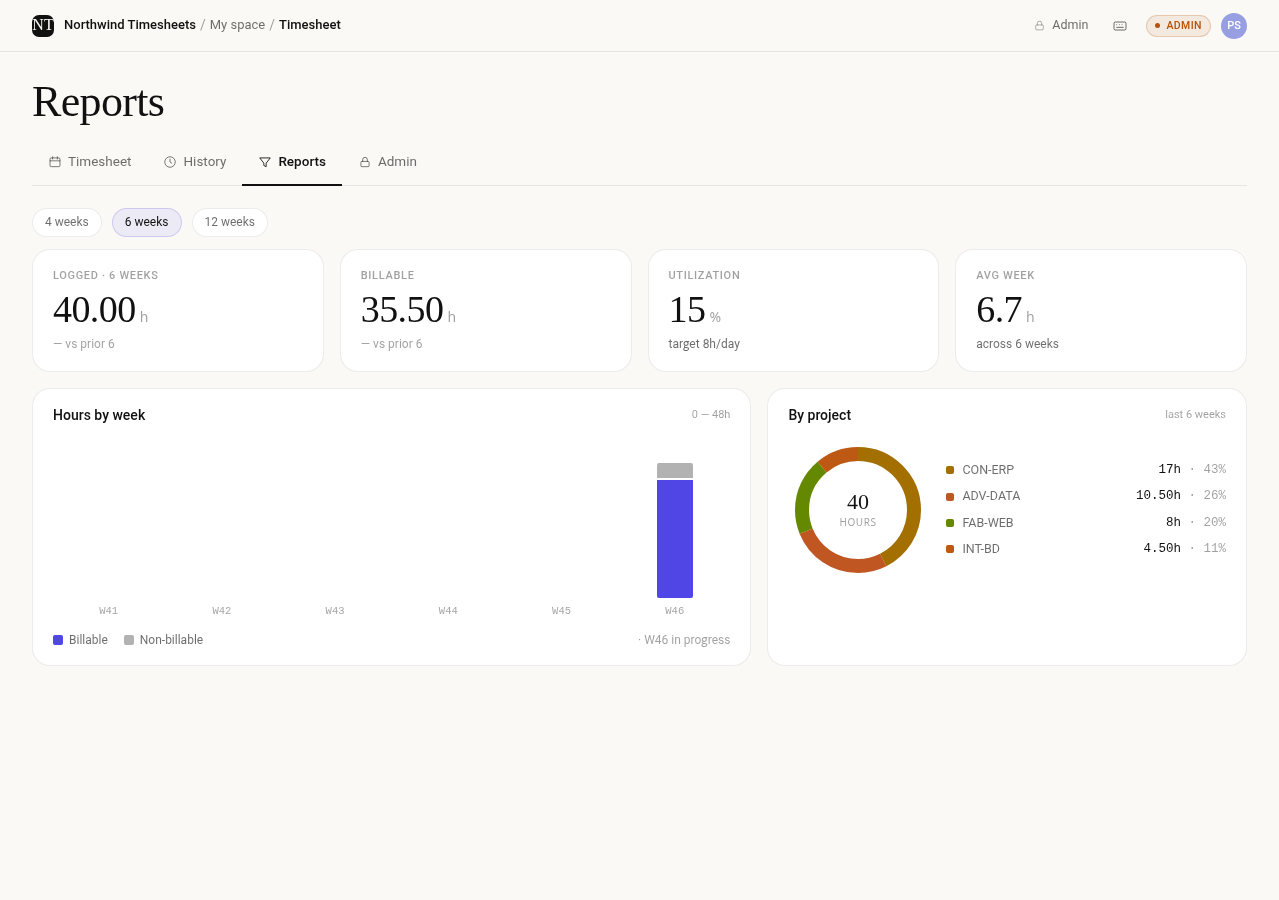
Team reports
Hours by week and by project, billable and non-billable time, and utilization over the last 4, 6 or 12 weeks.
Filtered reports
Pick any date range up to 400 days and narrow it to a person, client or project.
CSV for Excel
Download the same rows for payroll or invoicing, with project codes, billable flags, approval status, approver and notes.
Timesheet history
Everyone can look back at their past weeks, with status, totals and who approved them.
The right people see the right numbers
People see their own time, approvers see the people they approve, and admins see everyone.
Clients, projects and setup
Set up the work your team logs time against, or bring it in from what you already have.
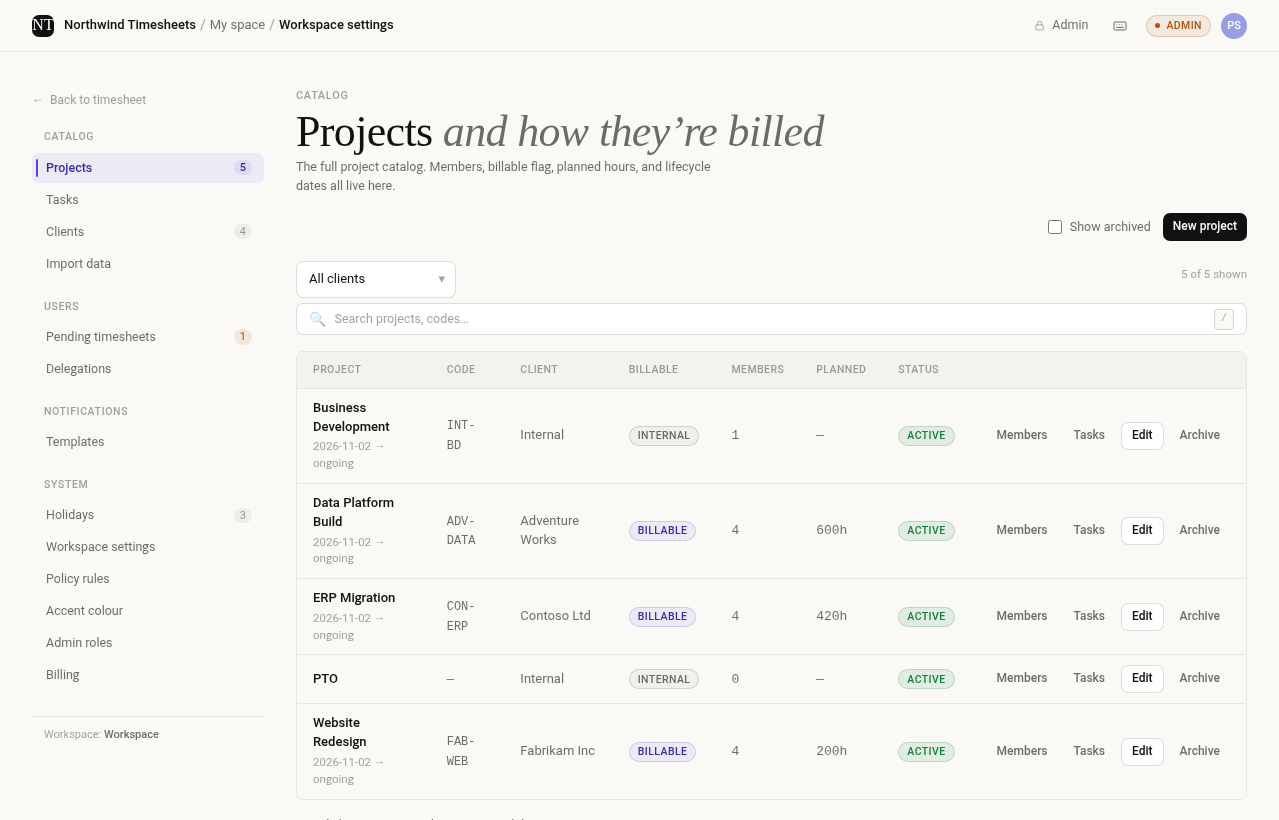
Clients and projects
Give each client and project a name and code. Projects can be billable, with planned hours and start and end dates.
Tasks
Add tasks under each project, each billable or not.
Project members
Add people as members, leads or observers. Everyone sees only the projects they belong to.
Archive when done
Archive finished clients and projects to keep lists short. Their history stays.
Import from CSV or a SharePoint list
Bring in clients, projects and tasks in bulk. A preview shows what's new, what already exists and what needs fixing before anything is created.
Guided setup
Timesheet creates the SharePoint lists it needs, then a checklist walks an admin through settings, clients, projects and tasks before the team goes live.
Your colours
Pick an accent colour and a light, dark or high-contrast theme.
Rules for your workspace
Match how your organization tracks time.
Working week
Set the hours for each day, the first day of the week and the date format.
Daily minimum and maximum
Require a minimum number of hours per day, cap the maximum, or both.
Required notes
Require a note on every entry, or a reason when someone changes a week and submits it again.
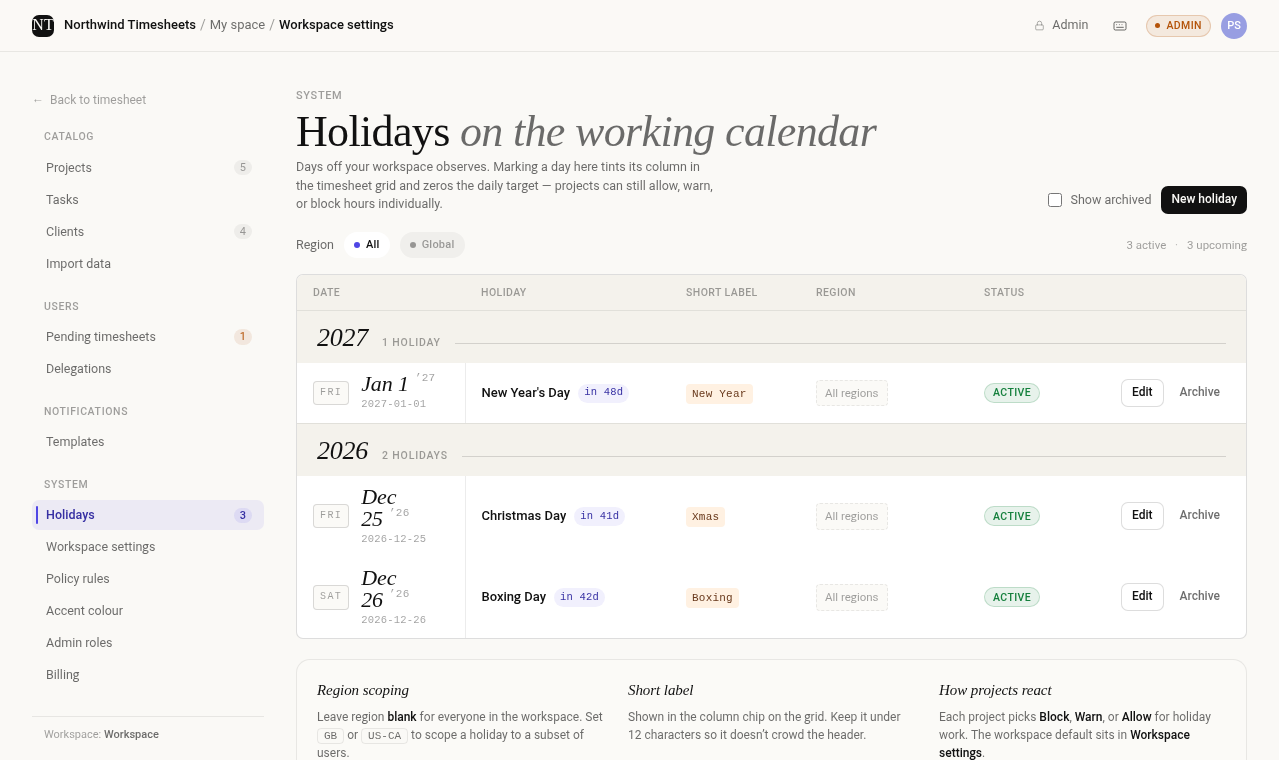
Holiday calendars
Add holidays for everyone or for specific regions. Choose whether time on a holiday is allowed, warned about or blocked, and change it per project.
Budget checks
When a project passes its planned hours, flag the entries or block them.
Project overrides
Each project can change the workspace rules that don't suit it.
Policy rules
Block a specific kind of change, such as deleting time entries or creating projects, and show people the message you write.
Data and approval integrity
Your timesheets stay in your tenant, and approvals hold up when someone checks them.
Stored in your SharePoint site
Clients, projects, time entries, approvals and settings are SharePoint lists in your Microsoft 365 tenant. Your retention and backup policies apply.
Your Microsoft 365 accounts
People sign in as they already do. There are no separate accounts or passwords.
Admin roles from Entra groups
Give part of the admin work to a Microsoft Entra group. HR admins manage holidays and delegations, Finance admins see billing, and program managers run projects. All three can report on everyone's time.
Locked lists
Settings and project lists can be changed only by site owners, and people can change only their own approval records.
Approval checks
Timesheet checks each approval against SharePoint's record of who made it, and only counts approvals from someone allowed to give them.
Changes after approval are flagged
If an entry changes after its week was approved, reports and exports mark it.
Integrity review
Admins get one list of anything that needs a look: approvals that don't count or can't be verified, self-approvals, and entries changed after approval.
Plan and billing
One subscription for your tenant, managed from inside the app.
See your usage
Admins can see the plan, its renewal date and how many people count toward it.
Fair user counting
Only people who can log time count. Observers and paused members don't, and each person counts once.
Self-service billing
Change your card, download invoices, switch plans or cancel from the billing portal.
Your data stays put
If a subscription ends, Timesheet stays readable for 30 days so people can see and export their time. The lists remain in your site.
See it with your own team. Free for 30 days.
Install it in your SharePoint site and log a real week. No credit card required.